How to Create an AI Commercial Ad Video: Step-by-Step Guide
This is a brief, straight-to-the-point tutorial on how to create a commercial AI Ad video using VideoAnalyzerAI and Free AI Video Models like Google Flow
How to Create an AI Commercial Ad Video: Step-by-Step Guide
This is a brief, straight-to-the-point tutorial on how to create an AI commercial Ad video using VideoAnalyzerAI and Free AI Video Models like Google Flow and others to produce professional, cinematic commercials for your product or for a client.
For this tutorial, we will be creating a Pepsi commercial Ad;
Step 1 — Download Reference Images
If you intend to create a commercial Ad video for your product or a client, download reference images if available, as they help keep your generation aligned with the right visual concept. It is ideal to have a reference image, but no one will penalize you if you don't...oh, except your client, I guess; which is why, for a real project, request or download reference image(s) to aid your creation.
For this example, we downloaded free random Pepsi can images.
Step 2 - Use VideoAnalyzerAI (VAA) Text → Video
Go-to videoanalyzerai.com/try, go to the Try page, and select the Text - Video feature
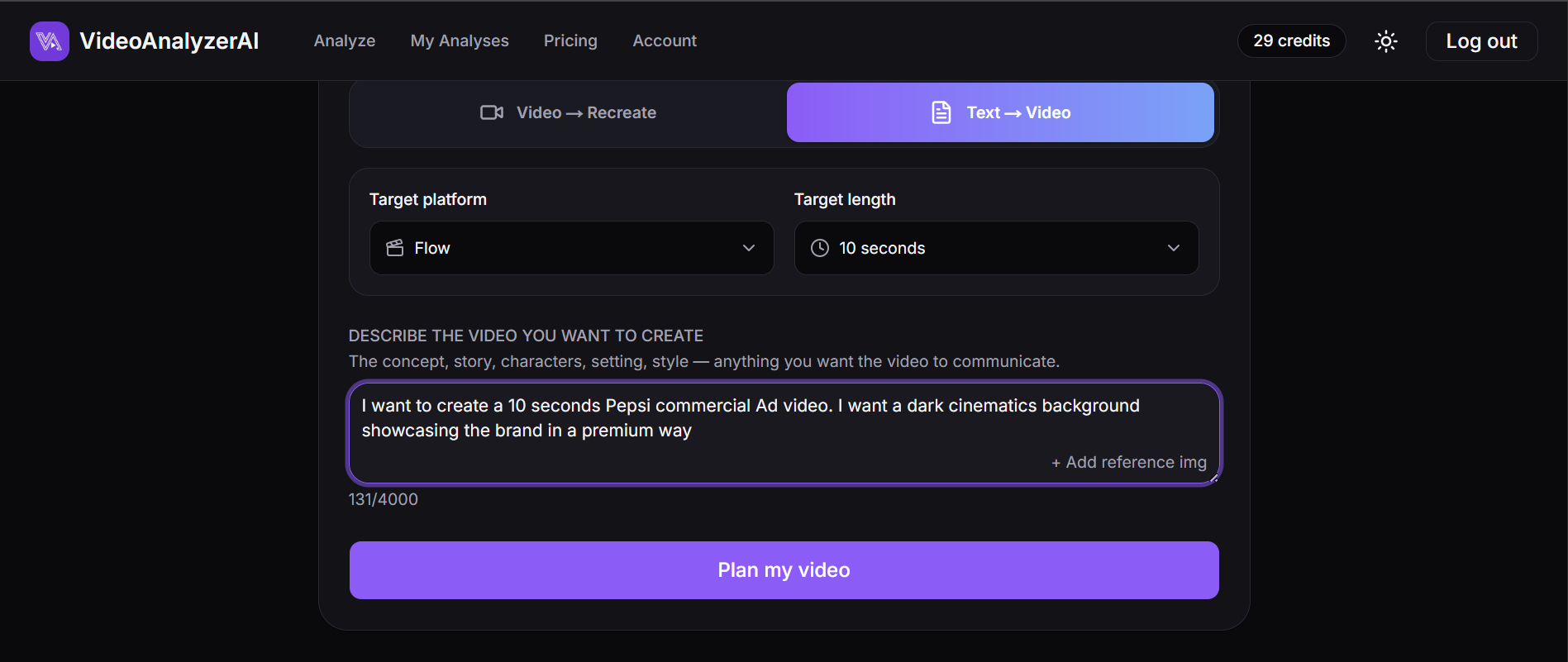
Select the AI Video model platform and duration you want to use for your video creation. For this example, we selected Google Flow and a duration of 10sec.
Insert a description of what you want to create, as detailed as possible; it must not be perfect. VAA can understand even the little details and expand on that to give you something exact or very close to what you want. VAA is built specifically for video production.
Insert the reference image(s) max. 3
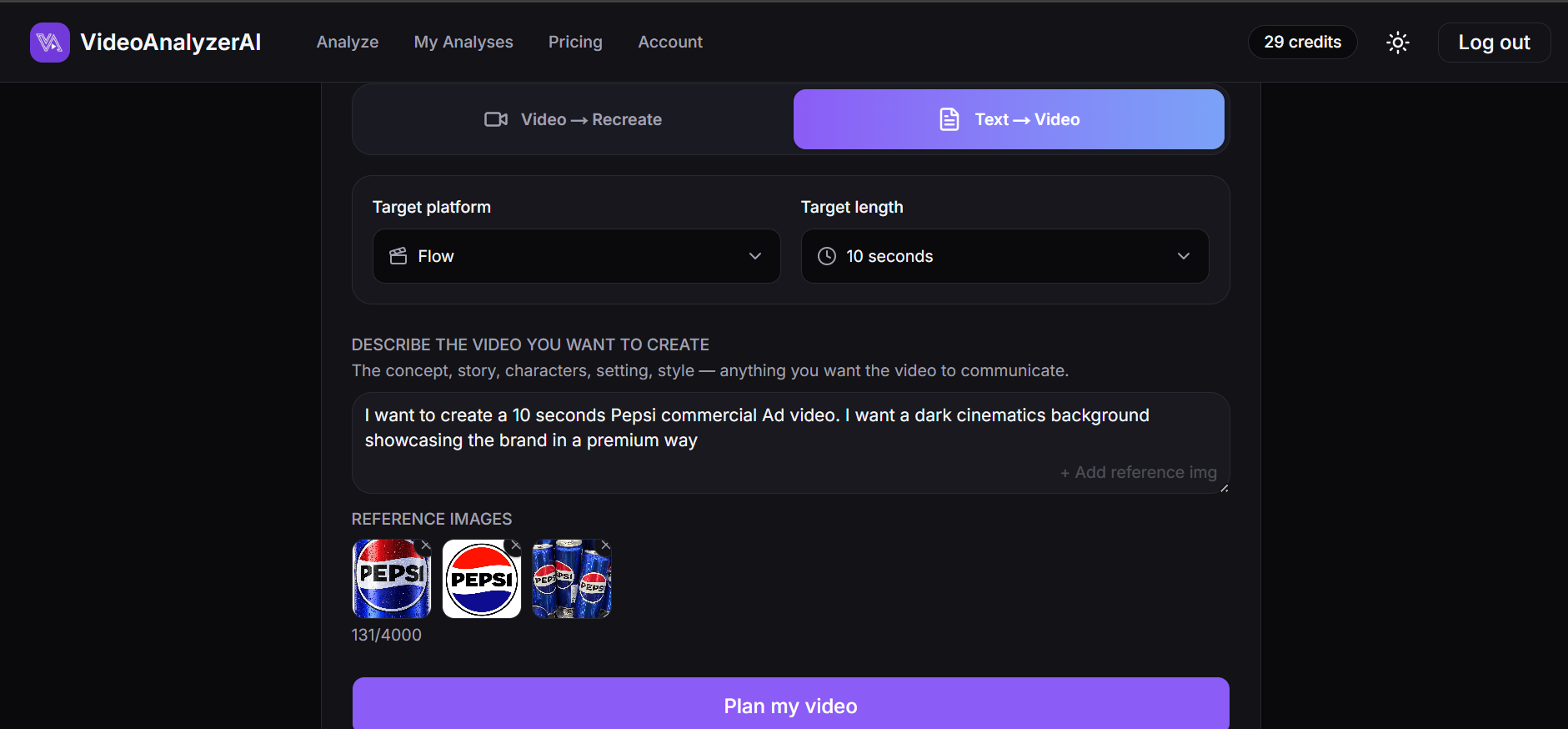
Step 3 - Click the 'Plan Video' Button
VideoAnalyzerAI will process your description, duration, and reference image(s) to give you an image and video scene-to-scene prompt specifically for the video model you selected.
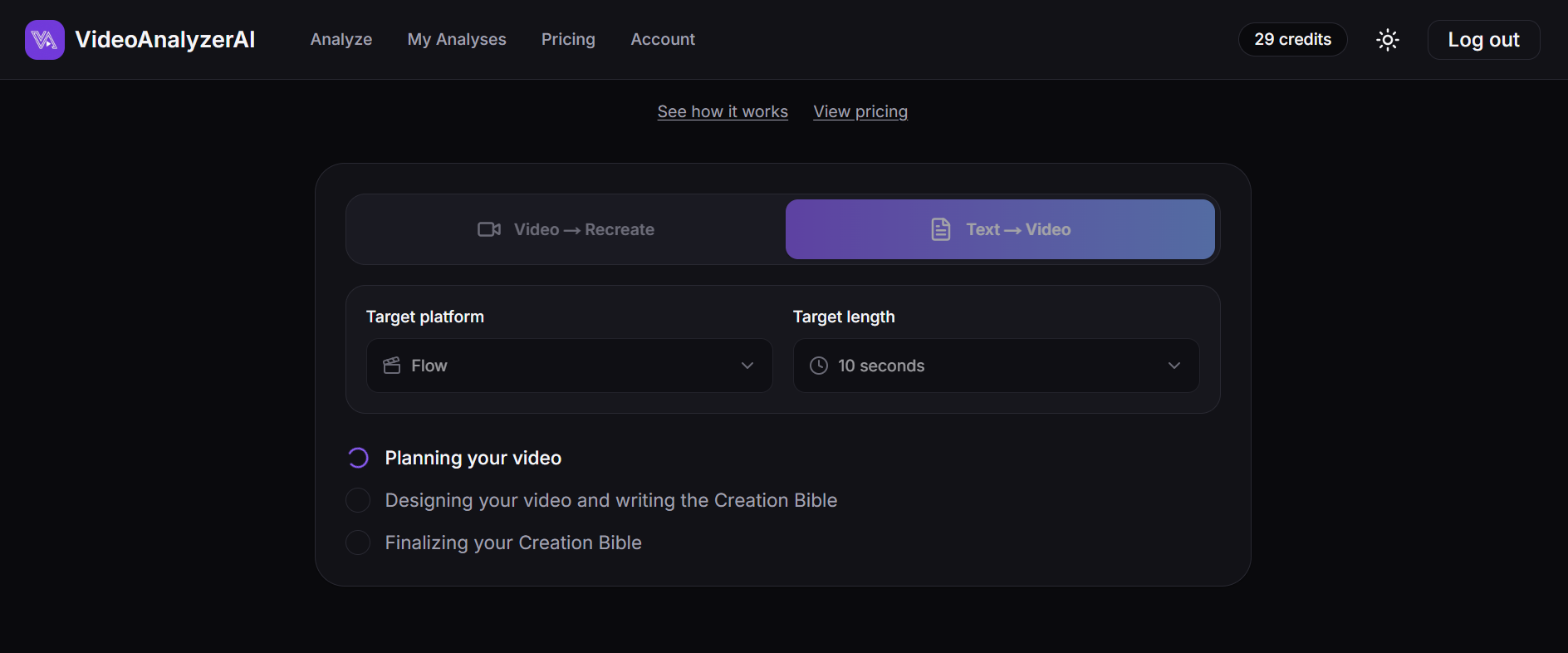
Step 4 - Creation Bible
After the analysis is complete, you will be required to create an account or log in to an existing account. New users receive 1 free analysis and Free 5 credits when they sign up.
Once sign-up or login is completed, you will be redirected to the Creation Bible page where you will see the generated Master Image Prompt, scene-to-scene image and video prompts.
What is a Master Image Prompt? - A master image prompt can simply be called the final image prompt; it is the visual representation of the expected final image. It is optional to use during creation but can be useful to ensure consistency amongst characters while creating your video.
Scene-to-scene Image and Video Prompts - VAA breaks down the video into scenes and generates the various scene image and video prompts in alignment with the AI video model you intend to use. You simply have to copy these prompts to the AI video model you use. If you are not sure which AI Model to use, you can select universal in the platform selection box, and VAA will generate a universal-style prompt usable in any AI video model.
Step 5 - Generate Images First
Next, open the AI Video model you use; for this example, we will use Google Flow. Copy the Master image prompt and image prompt for each scene one after another and paste them into Google Flow. After creating the master image or the first scene image, you want to use either the two images or one as the reference image for the next scene, and that continues until the last scene.
For example: Scene 1 image is the reference for scene 2 image generation, and scene 2 image is the reference for scene 3 image generation, etc. This will ensure continuity in the generated images and subsequently in the video generation
Choose the dimension you want to generate for; if it's a short video/reel, choose 9:16; for long-form videos, choose 16:9. Google Flow offers free image generation, so you can choose how many images per generation you want. Choosing from x2 is ideal because you can compare them and select the ones that look appealing and close to what you want; but for this example, we choose x2.
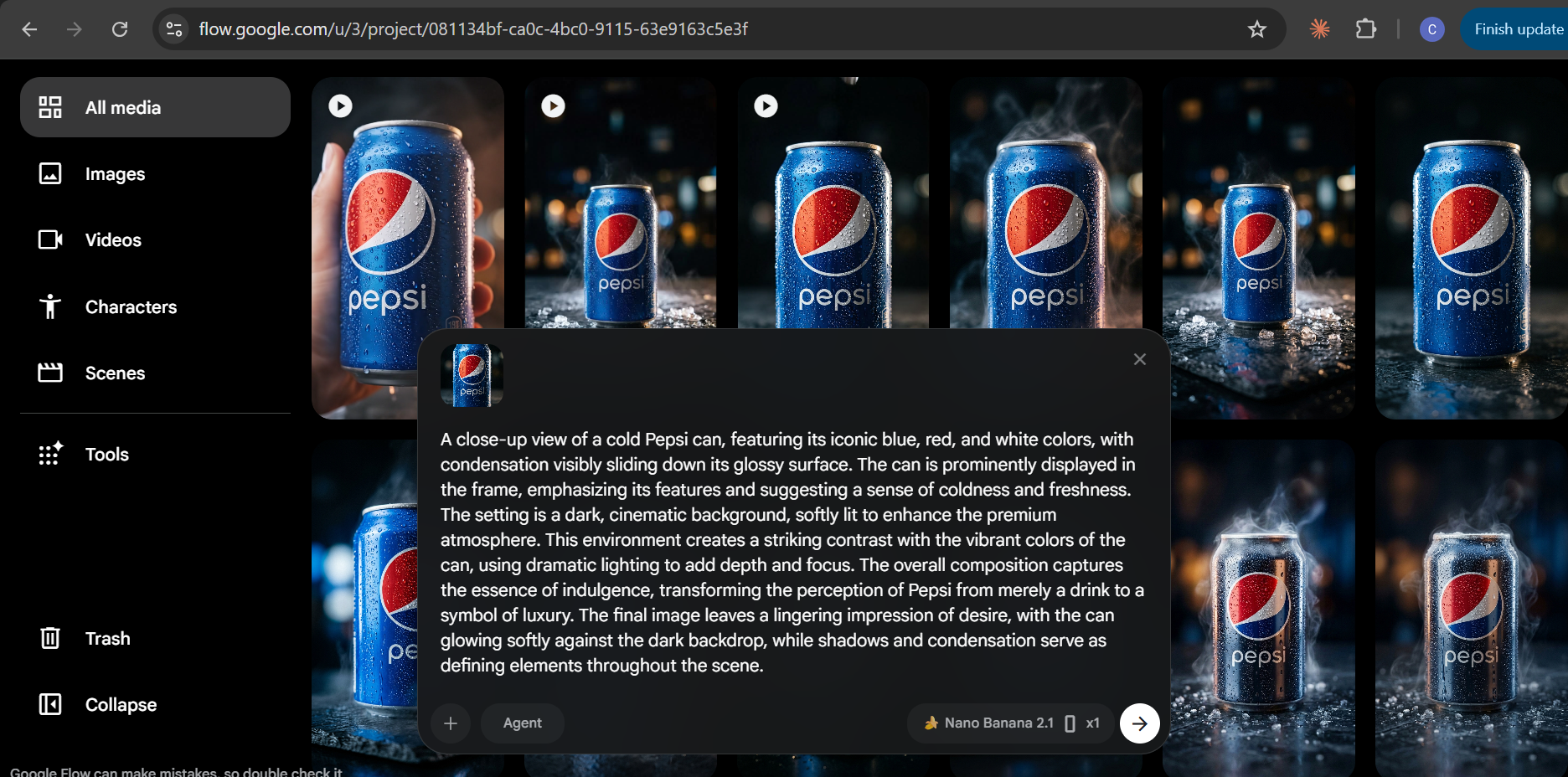
Step 6 - Generate the Video Scenes
Go back to your Analysis in your VAA account and copy the video prompt for each scene and paste it into Google Flow.
Google Video Models: Google Flow has 4 video model options you can select from, each having its own credit costs. The 4 options include Omini 1.1 Flash, Veo 3.1 lite, Veo 3.1 fast, and Veo 3.1 quality. Omini 1.1 Flash been the latest addition, allows you to select the duration you want for your video, and I think that's the major difference; however, it costs about 12 credits as against 10 credits for Veo 3.1 lite. You can read more about Google video models. For this example, we will be using Veo 3.1 lite.
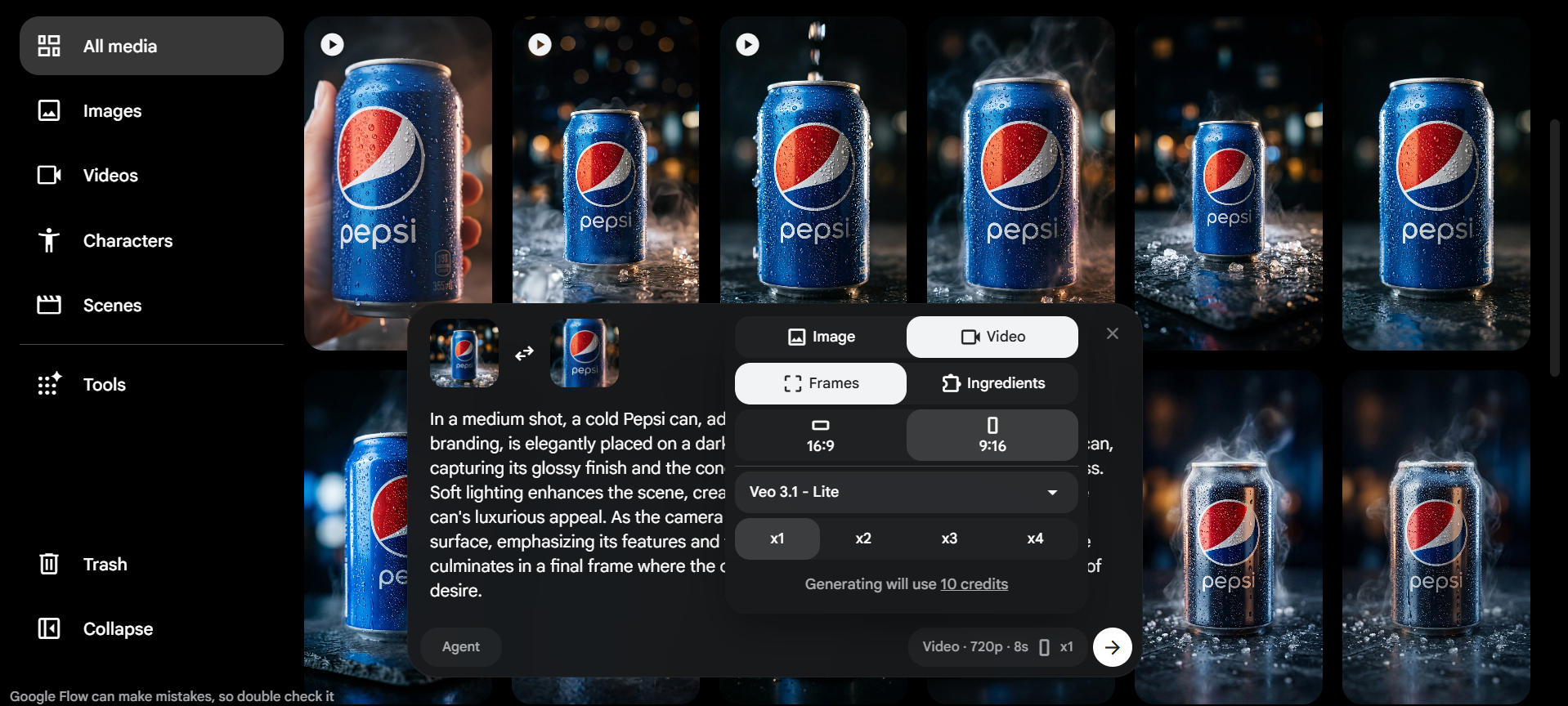
Google Flow Frames or Ingredients Option
To generate a video scene, you can either choose to use the frames option or the ingredient option; what it means is that you can add your generated master image and scene 1 image to generate the video for scene 1. You can also use the scene 1 and scene 2 images to generate video scene 2. But like this example we have only 3 scenes and we have generate images for the 3 scenes although you can have more that 3 images you select for the video scenes creation but lets assume we have just 3 images. So when we get to the last scene which is scene 3, we may likely have just one image left to be used, and in this kind of situation we can use the Ingredient option; this tells the AI to make use of the inputted prompt and the single image ingredient/reference to generate the last scene(scene 3) video. So when you don't have enough reference images to use the frame option, you can use the ingredient option.
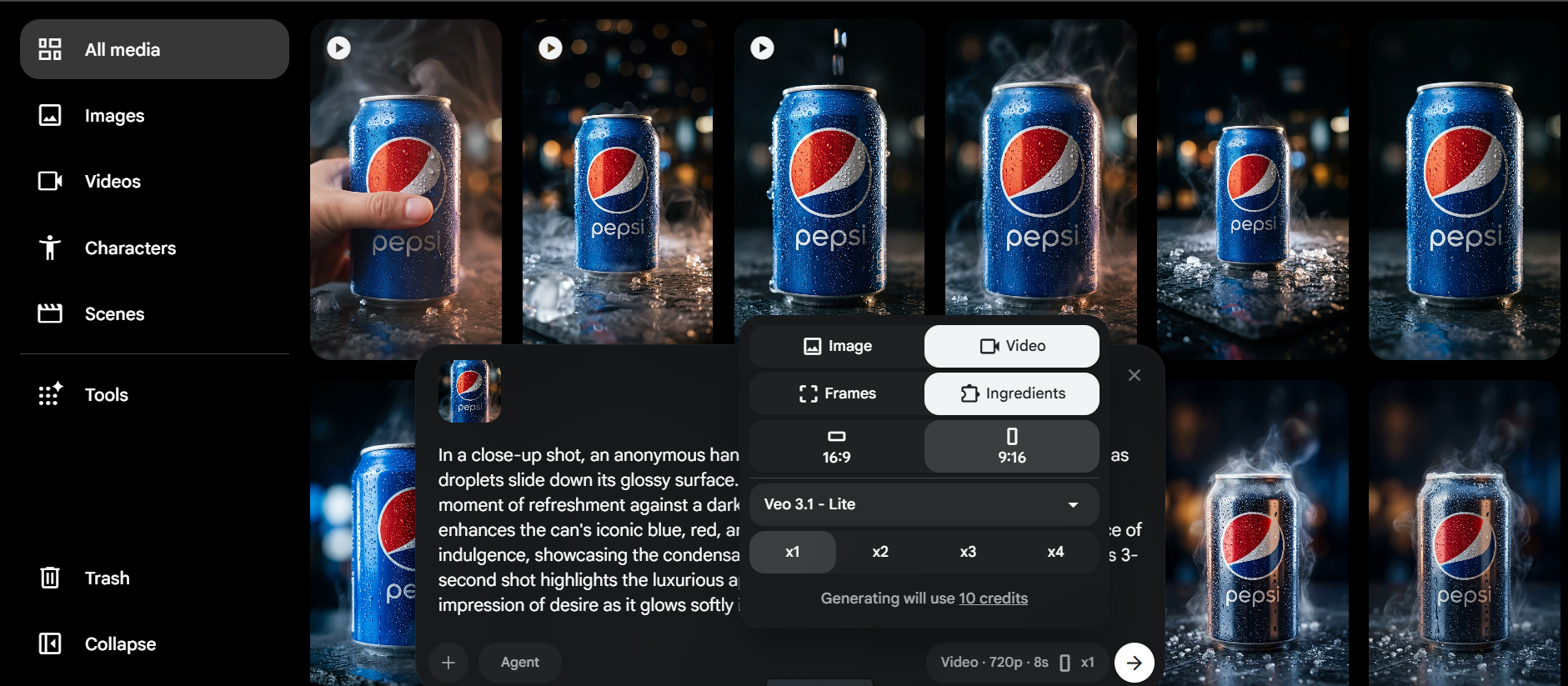
Go ahead and insert the prompt from VAA, either use the frame or ingredient option, then attach the reference image(s) you have already generated, and click submit to generate video scene by scene and download them.
Step 7 - Import to CapCut: Put Them All Together
The next and final step is to go to CapCut and put all the video scenes together, cut out unnecessary visuals, add animation, captions, and sound (if needed), and you will have your AI Commercial Ad Video ready to publish.
The Result
I hope you find this article helpful. Leave a comment if you will try this! Tell us your experience.
Check out our other blog post
Comments
Sign in to leave a comment.
No comments yet — be the first to comment.