How to Turn a Video into an AI Prompt: A Step-by-Step Guide
Have you ever watched an AI-generated video and wondered how you could create something similar?
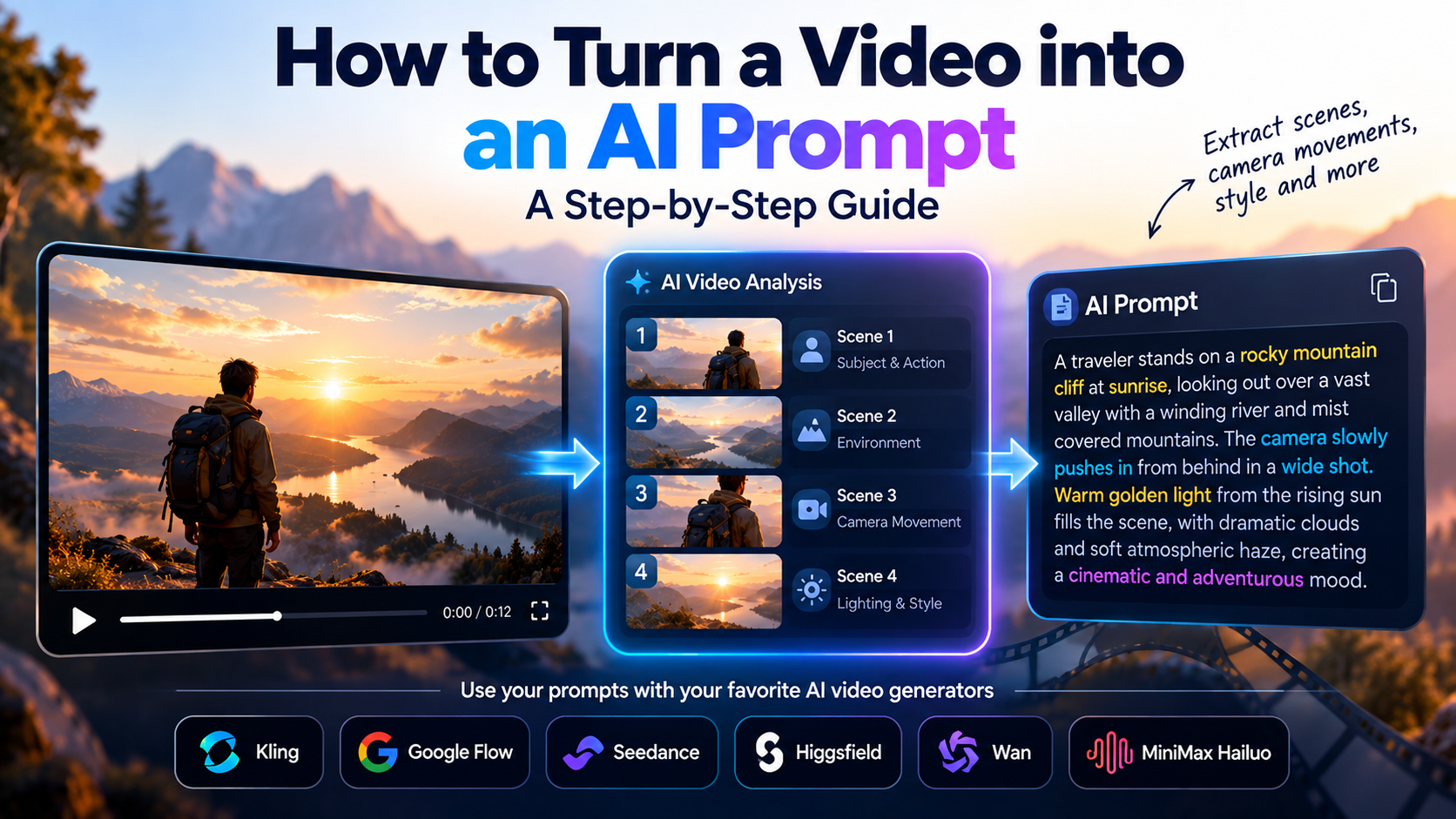
How to Turn a Video into an AI Prompt: A Step-by-Step Guide
Have you ever watched an AI-generated video and wondered how you could create something similar?
Maybe it was a cinematic product advertisement, a dramatic wildlife sequence, a stylish fashion video, or a short film with impressive camera movements and lighting. You understand what makes the video appealing, but turning what you see into a detailed AI video prompt can be difficult.
That is where a video-to-prompt workflow comes in.
Instead of trying to describe every visual detail from memory, you can use a reference video to build a structured prompt that describes its scenes, subjects, actions, visual style, camera language, and atmosphere.
In this guide, you will learn what a video-to-prompt tool does, how to turn a reference clip into reusable AI prompts, and how to prepare those prompts for your preferred AI video generator.
What Does It Mean to Turn a Video into an AI Prompt?
Turning a video into an AI prompt means analyzing the visible content of a video and translating it into descriptive instructions that can guide an AI image or video generation model.
A useful prompt may describe:
Subject: The person, animal, product, or object shown.
Action and motion: What the subject is doing and how it moves.
Environment: The location, background, weather, and surrounding objects.
Camera language: The shot type, camera angle, movement, and framing.
Lighting and color: The light source, contrast, palette, and atmosphere.
Visual style: Whether the scene looks cinematic, documentary, animated, realistic, or stylized.
Scene structure: How the visual sequence develops from one shot to the next.
For example, a simple description might be:
"A lion walks through the grass."
A more detailed video prompt could be:
"A mature male lion walks slowly through tall golden savanna grass at sunrise. The camera tracks alongside the animal at a low angle, capturing its movement in a medium-wide shot. Warm backlighting outlines its mane, while dust particles drift through the air. The background falls into a soft natural blur, creating a cinematic wildlife-documentary atmosphere."
The second description gives an AI video generator more information about the subject, movement, framing, lighting, and mood.
The purpose of a video-to-prompt workflow is to make this level of detail easier to produce, especially when a reference contains multiple scenes.
Can You Extract the Original AI Prompt from a Video?
Not necessarily.
If you only have the finished video, its original prompt, generation settings, model configuration, and editing instructions are not usually available from the visible footage alone.
A video-to-prompt tool therefore does not magically recover an exact hidden prompt. It analyzes the available visual and, where supported, audio information to construct a new descriptive prompt that captures relevant characteristics of the reference.
This distinction matters.
Two creators can analyze the same video and produce different prompts. One might emphasize the camera movement, while another focuses on the subject, color grading, or narrative structure.
The goal is not to claim access to information that is unavailable. It is to create a useful, editable starting point for a new generation.
How to Turn a Video into an AI Prompt
Here is a practical workflow you can follow.
Step 1: Choose a useful reference video
Start with a video that demonstrates something you want to reproduce or learn from.
Examples include:
A short cinematic scene.
A product advertisement.
A fashion or lifestyle video.
A wildlife sequence.
An animated short.
A social media video with interesting pacing and transitions.
Choose a reference that you own, have permission to use, or are otherwise authorized to analyze. You can study visual techniques without copying protected work wholesale or misrepresenting someone else's creation as your own.
Step 2: Identify the important visual elements
Before writing the prompt, identify what makes the reference work.
Ask yourself:
Who or what is the main subject?
What happens during the scene?
Where does the action take place?
Is the camera stationary, tracking, panning, or moving closer?
What lighting creates the mood?
How does the scene transition into the next one?
Which details need to remain consistent across multiple shots?
This process is particularly important for videos containing several scenes. A single paragraph may capture the overall idea but miss the shot-by-shot details that make the reference effective.
Step 3: Break the video into scenes
A scene-by-scene breakdown gives you a more practical prompt structure.
For each scene, record the main action, visual composition, camera movement, lighting, atmosphere, and transition where relevant.
For example:
Scene 1 — Establishing shot
A wide view of a modern city street at night. Rain reflects neon signs across the pavement. The camera slowly moves toward a lone figure standing beneath a streetlight.
Scene 2 — Subject close-up
The camera cuts to a close-up of the figure's face. Reflected neon colors illuminate the eyes while the background remains out of focus.
Scene 3 — Movement and transition
The figure turns and walks into a narrow alley. The camera follows from behind as the lighting gradually becomes darker.
This breakdown provides a clearer blueprint than a single instruction such as "Create a cinematic video of a person walking through a city."
Step 4: Generate detailed prompts
Once you understand the scene structure, translate those observations into prompts.
A strong prompt should be descriptive without introducing contradictory instructions. It should specify the intended action, camera behavior, visual environment, and important stylistic details.
Google's official Flow guidance, for example, recommends describing the subject, action, environment, lighting, and style. Kling's official prompt guide similarly highlights the subject, movement, scene, camera language, lighting, and atmosphere.
The precise structure may differ by model, so a prompt written for one generator should not automatically be assumed to be optimal for another.
Step 5: Adapt the prompts to your chosen AI video generator
Different video-generation tools can respond differently to the same instructions.
A general prompt can be a useful starting point, but a platform-specific version may organize camera directions, shot sequences, and other details in a way better suited to that tool.
Before using an exported prompt, check whether it is universal or has actually been adapted for your selected platform.
You can also consult the official guides for Kling AI and Google Flow to understand their current prompting workflows.
Step 6: Test, review, and refine
The first generated result may not reproduce every detail of your reference.
Review the output and identify what needs improvement. Perhaps the camera moves too quickly, the subject changes appearance, the lighting is inconsistent, or a transition does not feel natural.
Refine the relevant instructions rather than rewriting everything unnecessarily.
For multi-scene projects, pay particular attention to character consistency, visual style, pacing, and continuity between shots.
The Faster Way: Use an AI Video-to-Prompt Tool
You can analyze a video manually, but doing so for every scene can take time.
VideoAnalyzerAI is designed to help creators turn reference videos into structured, reusable prompt workflows.
With VideoAnalyzerAI, you can upload a reference video for analysis and work with the resulting scene breakdown, master prompt, and scene-level image and video prompts. You can also refine the creative direction and review or modify individual scenes.
The platform supports two distinct workflows:
Video to Recreate: Start with an existing video and develop a structured prompt blueprint based on its content.
Text to Video: Start with a written creative brief, optionally add reference images, and develop a scene-based creation plan without needing an existing video as the starting point.
Depending on your workflow, you can work with universal prompts or select a supported target platform, including Kling, Google Flow, Higgsfield, Seedance, MiniMax Hailuo, and Wan.
The objective is to give you a structured starting point you can inspect and refine, rather than leaving you to construct every scene prompt from scratch.
Ready to try the workflow? Visit VideoAnalyzerAI to explore the video-analysis and text-to-video prompt workflows.
Tips for Getting Better Results from Video-to-Prompt Analysis
Focus on motion, not just appearance
A still image describes what a frame looks like. A video prompt must also communicate what changes over time.
Describe how the subject moves, how the camera follows it, and how the environment changes during the shot.
Preserve the important visual details
If the reference relies on a distinctive color palette, lighting arrangement, character appearance, or product design, make those details explicit in the prompt.
For longer sequences, repeat essential character or style details where necessary to help maintain continuity.
Keep each scene focused
Avoid combining too many unrelated actions into a single short scene. Separate distinct actions or camera setups when doing so makes the intended sequence clearer.
Use camera language deliberately
Terms such as close-up, wide shot, tracking shot, low angle, and slow push-in can communicate specific visual intentions.
However, camera terminology should serve the scene. Adding multiple conflicting camera movements to one prompt can make the intended action less clear.
Treat generated prompts as editable drafts
AI-generated prompt descriptions are starting points, not guarantees of an identical result. Review them, correct inaccuracies, and remove details that do not match your creative goal.
Use platform-specific instructions when appropriate
A universal prompt can be useful when exploring ideas across tools. When you have selected a particular video generator, check whether your prompt has been adapted for that model rather than assuming all prompt formats are interchangeable.
Common Mistakes to Avoid
Expecting an exact copy of the original prompt. The visible video does not ordinarily reveal the exact instructions used to generate it.
Ignoring scene structure. A single long prompt may fail to capture the distinct shots and transitions in a complex reference.
Describing only the subject. The subject matters, but camera movement, lighting, environment, and action can be just as important.
Overloading the prompt with conflicting details. More words do not automatically mean better results. Instructions should be clear and internally consistent.
Skipping the review stage. Inspect the generated result and refine the instructions that are responsible for the differences you notice.
Assuming every model interprets prompts identically. Adapt your workflow to the generator you intend to use.
Frequently Asked Questions
What is the best way to turn a video into a prompt?
Use a video-to-prompt workflow that identifies the subject, action, scene structure, camera movement, lighting, and visual style. For multi-scene videos, create separate prompts for individual scenes and review them before generation.
Can AI analyze a video and create prompts automatically?
Yes. AI tools can analyze available video content and generate descriptive prompts or scene breakdowns. The accuracy and level of detail depend on the input, the tool, and the analysis process. Always review the result.
Can I use a video prompt with Kling or Google Flow?
You can use descriptive prompts as a starting point, but the most suitable structure can vary by platform. Review the relevant generator's guidance and adapt the prompt to the intended workflow.
Does a video-to-prompt tool generate the new video too?
Not necessarily. Video analysis and video generation are different functions. VideoAnalyzerAI's prompt workflows help you analyze a reference or develop a creation blueprint; the resulting prompts can then be used in supported external video-generation workflows.
Is a video-to-prompt workflow useful for advertisements?
Yes. It can help break an advertisement into scenes and identify its product framing, camera movement, lighting, pacing, and visual style. You can use those observations to develop a new creative concept and build prompts for your own production.
Can I start without an existing video?
Yes. A text-to-video prompt workflow starts from a written brief and can use reference images to guide the resulting scene plan.
Turn Your Reference into a Creative Blueprint
Learning how to turn a video into an AI prompt can help you move from visual inspiration to a more structured production process.
Instead of relying on memory or writing a single vague description, you can work with scene-level prompts, camera directions, lighting, movement, and visual continuity.
Whether you are developing an advertisement, a cinematic short, an animation, or social media content, the key is to translate what matters in the reference into clear instructions—and then refine those instructions based on the results.
Start exploring your next video idea with VideoAnalyzerAI.
Check out our Blog page other tips and guides
How to Recreate an AI Video From a Reference Video
Comments
Sign in to leave a comment.
No comments yet — be the first to comment.