How to Extract Prompt from Video: A Complete Guide
Learn how to extract prompts from videos using AI. Discover scene analysis, camera movements, lighting, and how to create reusable prompts.
How to Extract Prompt from Video: A Complete Guide
You have probably watched a video and wondered how its creator produced the exact look, camera movement, lighting, or cinematic atmosphere.
Perhaps it is a product advertisement with smooth camera transitions, a dramatic wildlife sequence, a fashion video with distinctive lighting, or an AI-generated short film that looks remarkably realistic.
You want to create something with a similar visual style, but you do not know which prompts to write.
This is where extracting a prompt from a video becomes useful.
With the right workflow, you can analyze a reference video, identify its important visual elements, and turn those observations into a detailed prompt that you can edit and reuse with an AI video generator.
In this guide, you will learn how video prompt extraction works, what information to look for, how to create prompts manually, and how to use AI tools to simplify the process.
What Does It Mean to Extract a Prompt from a Video?
Extracting a prompt from a video means analyzing the visible content of a finished clip and creating a text description that captures its important creative characteristics.
These characteristics may include:
The main subject and its appearance.
The actions taking place in each scene.
Camera angles, framing, and movement.
Lighting, colors, and visual atmosphere.
Backgrounds, environments, and important objects.
Scene changes, transitions, and pacing.
The overall visual style.
The resulting description can serve as a starting point for generating a new video with similar characteristics.
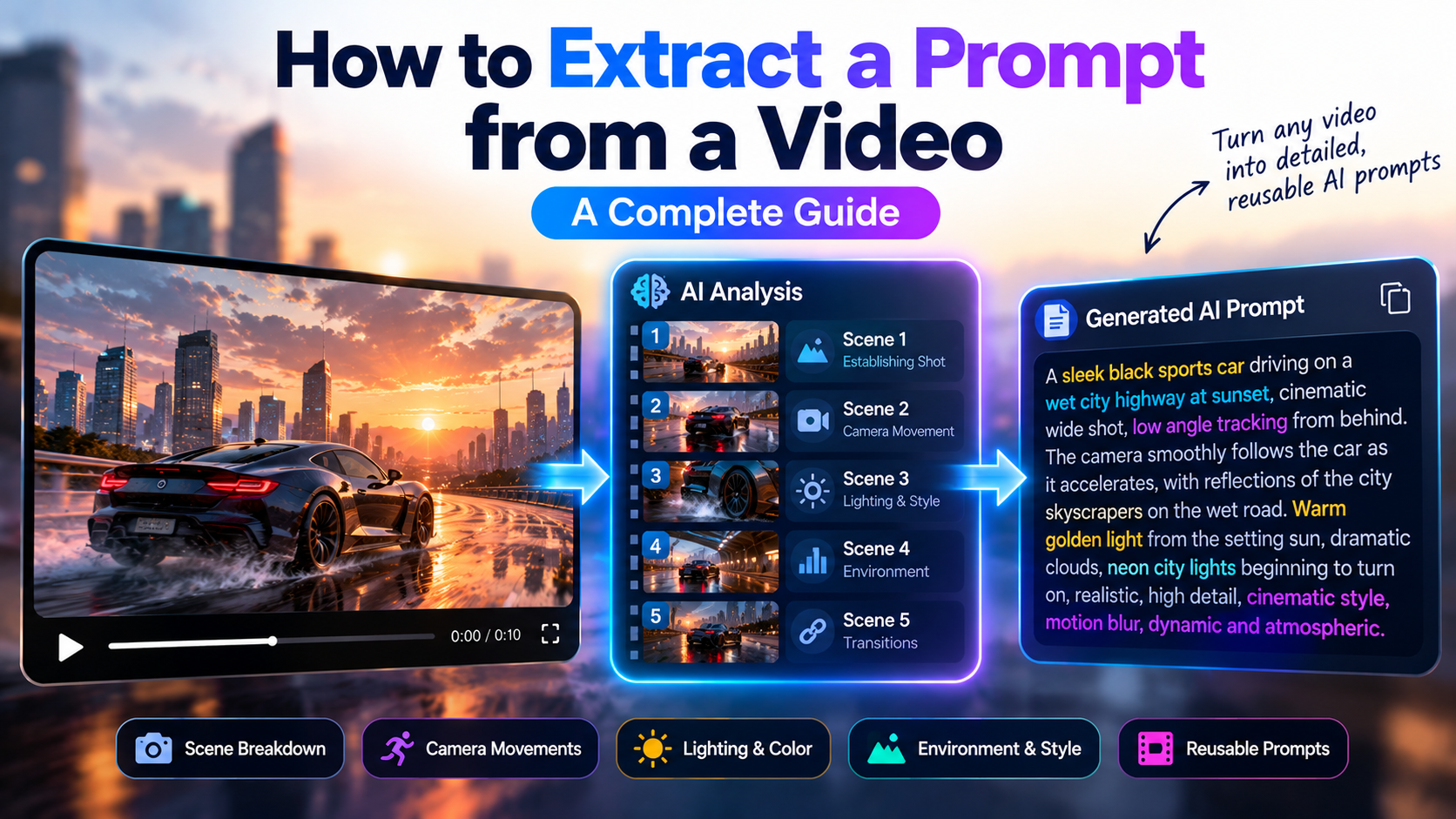
For example, imagine a video showing a sports car driving through a city at night. A basic description might be:
"A sports car driving through a city."
A more useful prompt could describe a black sports car accelerating along a rain-soaked street, neon signs reflecting across its bodywork, a low tracking camera following its movement, and cinematic lighting emphasizing the contrast between the vehicle and the city.
The second prompt provides more information about the visual experience you want to recreate.
Can You Recover the Exact Original Prompt?
Usually, no.
A finished video does not normally contain the complete original text prompt, model settings, generation parameters, or editing instructions used to produce it.
Some videos may combine AI-generated scenes, traditional footage, sound effects, music, editing, and visual effects. The final result may therefore have no single prompt that fully explains everything you see.
The practical goal is to reconstruct a useful prompt from observable evidence, not to claim that the original hidden prompt has been recovered exactly.
An AI tool can identify visible details and propose descriptions that may help you generate something similar. You should still review the result, correct inaccurate observations, and refine the instructions for your intended output.
What Information Should You Extract from a Video?
A useful video prompt should describe more than the objects visible on screen. It should also capture how the scene develops over time.
1. Subject and appearance
Identify the main person, animal, product, vehicle, or object.
Record relevant details such as color, shape, clothing, materials, distinctive features, and position in the frame.
If a character appears in several scenes, note the features that need to remain consistent.
2. Action and movement
Describe what happens during the shot.
Does the subject walk, run, turn, jump, transform, or interact with an object? Is the movement slow and deliberate or fast and energetic?
For AI video generation, the action is often just as important as the subject itself.
3. Camera movement and framing
Look at how the camera captures the action.
Useful observations include:
Wide shot or close-up.
Low-angle or high-angle framing.
Tracking movement following a subject.
Slow push-in toward a subject.
Pan across a scene.
Static framing with movement inside the frame.
Do not assume every shot needs an elaborate camera movement. A stable camera can be the most important part of a particular scene.
4. Lighting and color
Identify whether the scene uses natural daylight, golden-hour sunlight, dramatic shadows, neon lighting, soft studio illumination, or another lighting arrangement.
Observe the dominant colors and the contrast between foreground and background.
These details can help communicate the mood of the reference.
5. Environment and atmosphere
Describe the location and its important elements.
A forest scene, for example, might feature dense foliage, mist between trees, wet ground, and soft light filtering through the canopy.
The environment can influence how a scene feels, even when the main subject remains unchanged.
6. Scene structure and transitions
Longer videos often contain several shots with different compositions and actions.
Identify where one shot ends and the next begins. Note whether the sequence uses direct cuts, fades, or other visible transitions.
Breaking a video into scenes makes it easier to create prompts that describe each part of the sequence rather than compressing everything into one paragraph.
How to Extract a Prompt from a Video Manually
If you want to understand the process before using an automated tool, follow these steps.
Step 1: Choose a reference clip
Select a video that demonstrates the style, movement, or scene structure you want to study.
Use a video you own or have permission to analyze. A short, clear reference is often easier to work with than a long video containing many unrelated scenes.
Step 2: Watch the entire video
Before writing anything, watch the clip from beginning to end.
Identify its overall concept, visual style, pacing, and narrative progression.
Then watch it again and focus on the individual shots.
Step 3: Identify key scenes
Create a simple scene list.
For each scene, record:
What is visible.
What the subject does.
How the camera is positioned or moves.
What the lighting and environment look like.
How the scene connects to the next shot.
You can use a spreadsheet or a simple document to organize your observations.
Step 4: Write a prompt for each scene
Turn your observations into clear instructions.
For example:
Reference observation: A person walks through a misty forest while the camera follows from behind.
Reconstructed prompt: A lone hiker walks slowly along a narrow forest trail covered with damp leaves. The camera follows from behind at shoulder height, maintaining a steady tracking movement. Thin layers of mist drift between tall trees while soft morning light filters through the canopy. Muted green and earthy brown tones create a quiet, atmospheric mood.
This prompt describes the subject, action, camera, environment, lighting, and mood.
Step 5: Create a master prompt
If the video contains multiple scenes, identify the visual elements that connect them.
Your master prompt might describe the overall visual style, color palette, atmosphere, character appearance, or production aesthetic.
Use individual scene prompts to describe the specific actions and camera setups.
This structure helps you maintain a coherent direction while allowing each scene to have its own composition and movement.
Step 6: Refine the prompt
Review your draft for missing details and conflicting instructions.
If you want a slow camera movement, avoid adding unrelated instructions that imply rapid movement. If the character needs to look consistent across several shots, explicitly preserve the important appearance details.
The goal is not to write the longest possible prompt. It is to communicate the visual intention clearly.
The Faster Method: Extract Video Prompts with AI
Manual analysis can teach you a great deal about video production, but it becomes time-consuming when a reference contains many scenes.
An AI video-to-prompt tool can help automate much of the descriptive work.
VideoAnalyzerAI is designed to help creators analyze an uploaded reference video and turn the results into a structured, reusable prompt workflow.
Instead of manually writing every scene description from scratch, you can work with a master prompt and scene-level image and video prompts. You can also provide creative direction, then review and adjust individual scenes.
How to use VideoAnalyzerAI
Step 1: Open the tool.
Visit VideoAnalyzerAI.
Step 2: Select the video recreation workflow.
Choose the Video → Recreate workflow if you want to use an existing video as your reference.
Step 3: Upload your reference video.
Select a supported video file. The current workflow supports common formats including MP4, MOV, AVI, MKV, and WebM, subject to the tool's upload and duration limits.
Step 4: Add creative direction if needed.
Explain what you want to preserve or change. For example, you might want to retain the camera language but create a different product advertisement, adjust the atmosphere, or develop a new concept from the reference.
Step 5: Analyze and review the resulting prompts.
Review the master prompt and the individual scene descriptions. Check whether the important subjects, actions, camera movements, and visual details are represented accurately.
Step 6: Refine and reuse the prompts.
Modify scenes where necessary and use the resulting prompts in your supported AI video-generation workflow. Select a target platform when you need platform-specific prompt adaptation, and check whether your exported prompts are actually adapted or remain universal.
Try VideoAnalyzerAI to explore the workflow.
How to Turn Extracted Prompts into Better AI Videos
Extracting a prompt is only one part of the process. The next step is turning the description into a useful set of generation instructions.
Focus on the details that matter most
Start with the main subject and action. Then add the camera, environment, lighting, and visual style.
Avoid including details that do not contribute to the intended scene.
Preserve continuity across scenes
If the same character or product appears in several shots, describe the important characteristics consistently.
For advertisements, this may include product shape, color, materials, and branding. For narrative videos, it may include clothing, facial features, and other recognizable character details.
Adapt the prompt to your target platform
Different AI video generators may respond differently to prompt structure and camera instructions.
A universal prompt can help you explore a concept across tools, while a platform-adapted prompt can organize the instructions for a particular generator.
VideoAnalyzerAI supports workflows for Kling, Google Flow, Higgsfield, Seedance, MiniMax Hailuo, and Wan. Always review the generated prompt before using it, especially if the output needs a specific shot structure or camera behavior.
Test one improvement at a time
If the generated result differs from your reference, identify the most important mismatch.
If the camera movement is wrong, refine the camera instruction. If the lighting is too harsh, adjust the lighting description. If the subject changes appearance, strengthen the continuity details.
Changing several unrelated elements at once can make it harder to understand which instruction improved the result.
Common Mistakes When Extracting Video Prompts
Expecting exact prompt recovery
The finished footage does not usually reveal the original prompt. Treat the output as a reconstruction based on visible evidence.
Describing only a single frame
A still image cannot fully communicate the movement, timing, and transitions of a video. Analyze the sequence rather than relying on one screenshot.
Ignoring camera movement
The same subject can look completely different depending on the camera angle, framing, and movement.
Combining too many actions in one scene
If several distinct actions or camera setups occur in quick succession, separate them into clearer scene descriptions.
Adding details that are not supported by the reference
An AI-generated description may infer a location, object, or action incorrectly. Verify important details instead of assuming every generated observation is accurate.
Forgetting the creative objective
You do not always need to reproduce every detail. Sometimes the goal is to understand the visual style and apply it to a new concept. Be clear about what should remain similar and what should change.
Frequently Asked Questions
Is there an AI tool that extracts prompts from videos?
Yes. Video-to-prompt tools analyze video content and produce descriptive prompts. Some workflows provide an overall description, while others provide structured scene-level outputs. The level of detail varies by tool.
Can I extract the original prompt from an AI-generated video?
Usually, you cannot recover the exact original prompt from the finished video alone. You can reconstruct a new prompt from the visible scene, actions, camera movements, lighting, and other characteristics.
What is the difference between video-to-prompt and image-to-prompt?
Image-to-prompt focuses on describing a still image. Video-to-prompt must also account for movement, changes between frames, scene structure, and camera behavior.
Can I use extracted prompts with Kling, Google Flow, or Seedance?
You can use extracted prompts as a starting point, but you may need to adapt their structure to the target generator. Check the prompt format and review the output before running a generation.
Can I extract prompts from a product advertisement?
Yes. An advertisement can be analyzed for product framing, camera movement, lighting, scene changes, and visual style. You can use those observations to develop a new concept for your own product or campaign.
Can I create prompts without a reference video?
Yes. A text-to-video workflow starts with a written creative brief rather than an existing clip. VideoAnalyzerAI also supports a creation workflow in which you can provide reference images to guide the scene plan.
Turn Video Inspiration into a Reusable Prompt Workflow
Extracting a prompt from a video is not about discovering a hidden sentence that guarantees an identical result. It is about understanding the creative choices behind the footage and translating them into useful instructions.
By identifying the subject, action, camera movement, lighting, environment, and scene structure, you can build a more precise prompt and refine it for your intended AI video generator.
If you want to spend less time manually documenting every scene, VideoAnalyzerAI can help you turn a reference video into a structured prompt blueprint.
Start with VideoAnalyzerAI and turn your next reference into a starting point for your own creative project.
Check out some of our blog posts:
How to Turn a Video into an AI Prompt: A Step-by-Step Guide
AI Video Prompts: How to Write Better Prompts From Reference Videos
Comments
Sign in to leave a comment.
No comments yet — be the first to comment.